How to use iToth
Seven short steps, from your first card to your own books. Each one shows the screen you will see in the app.
-
Step 1: Start with the example books
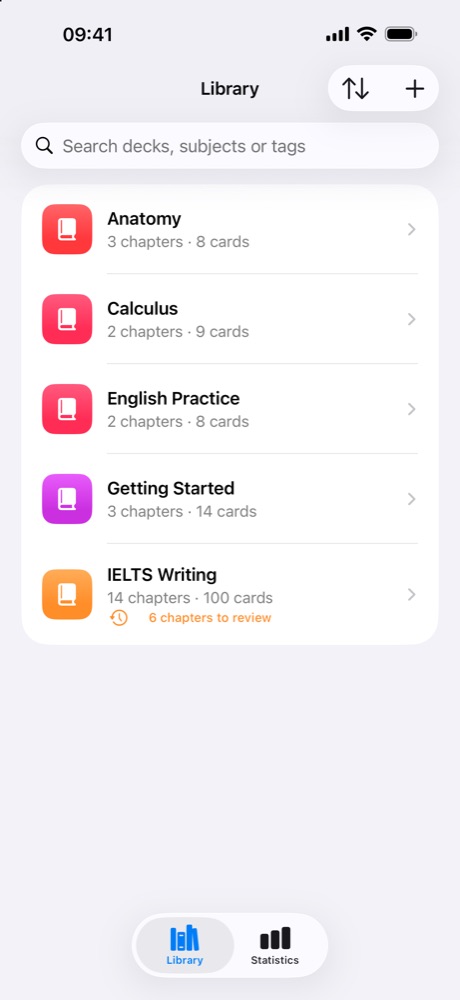
The first time you open iToth, the Library has a few example books, like Anatomy and Calculus, and a Getting Started book that teaches the app with real cards. Tap a book to open it.
-
Step 2: Flip a card
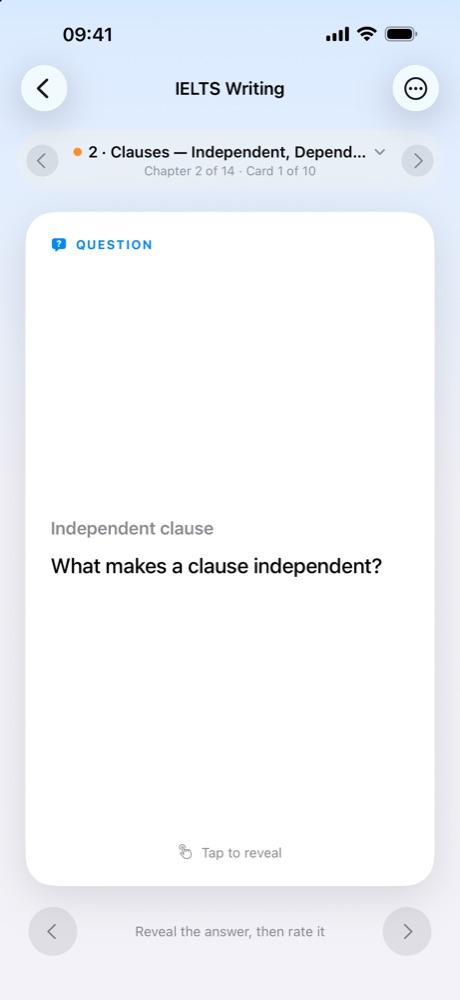
Read the question and try to remember the answer. Tap the card to turn it over. Swipe left or use the arrows to move between cards.
-
Step 3: Say how well you remembered
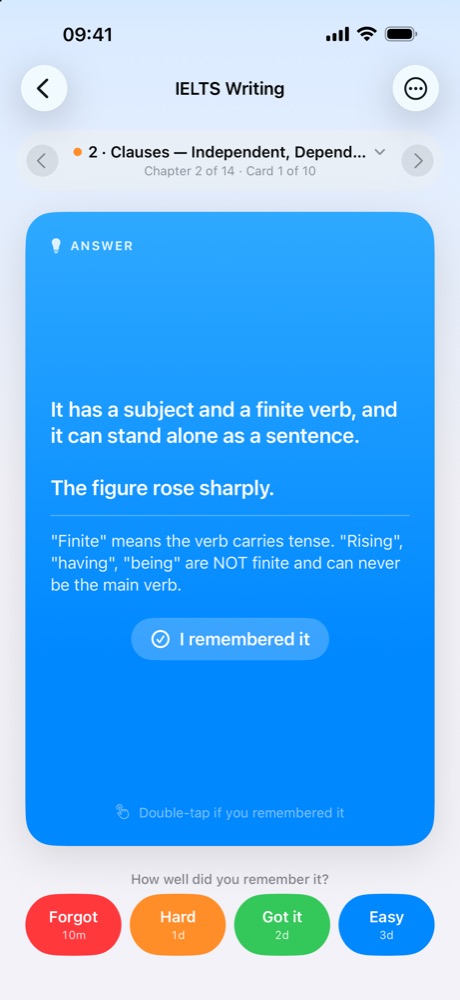
Under the answer, tap Forgot, Hard, Got it or Easy. Each button shows when the card comes back: Forgot in minutes, Easy in days or weeks. On the answer, a double tap means "I remembered it".
-
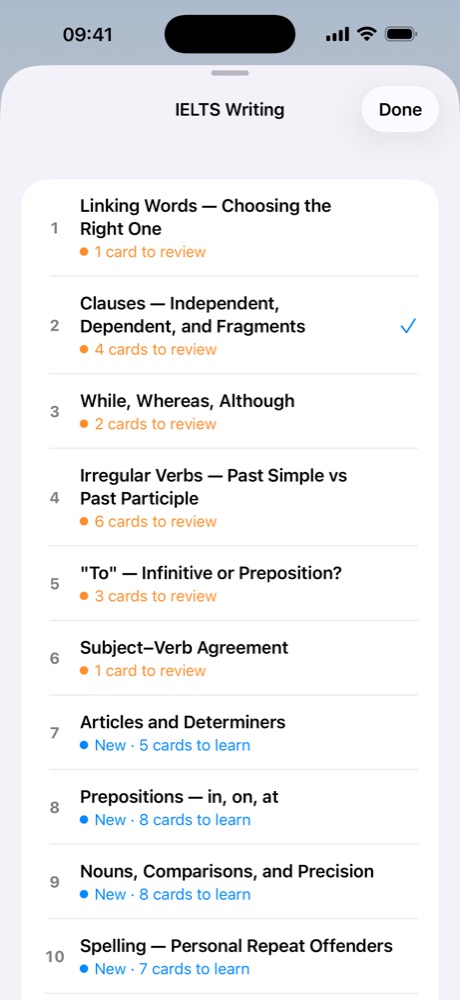
Step 4: Follow your chapters
Tap the chapter name at the top of a book to see every chapter. An orange dot means cards to review, blue means new cards, green means up to date. A book opens on the chapter that needs you most.
-
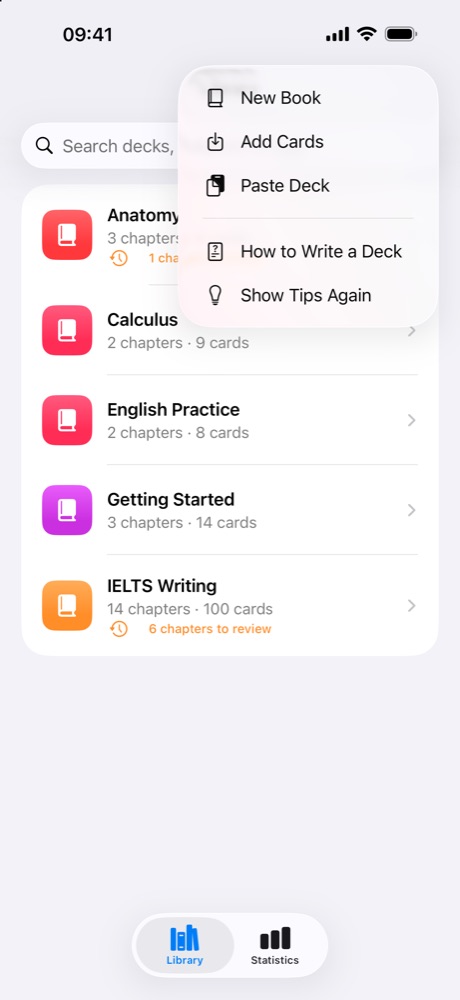
Step 5: Add your own cards
Tap + in the Library. Add Cards imports a file (Anki .apkg, Quizlet or Anki text exports, iToth decks). Paste Deck adds a deck you copied from Notes, a website or a chat.
-
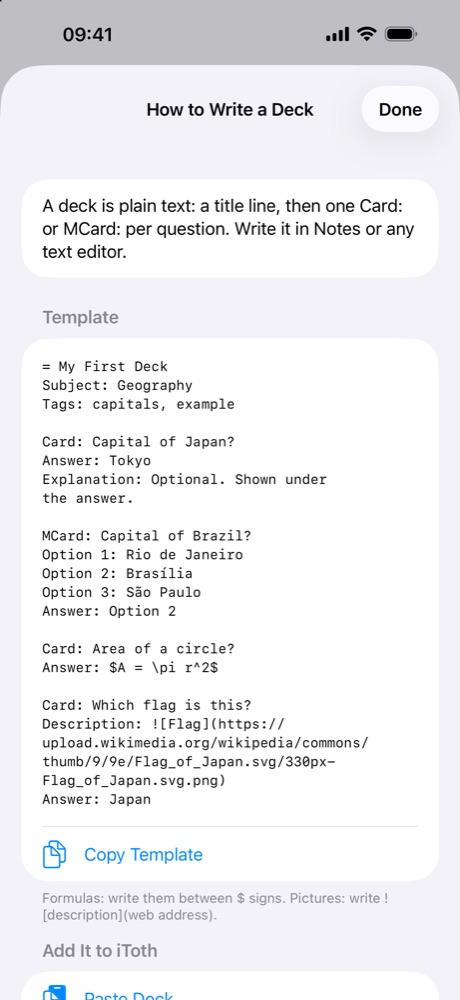
Step 6: Write a deck in plain text
A deck is plain text: a title line starting with "=", then one "Card:" or "MCard:" per question. Write formulas between $ signs and add pictures with . How to Write a Deck has a template you can copy.
-
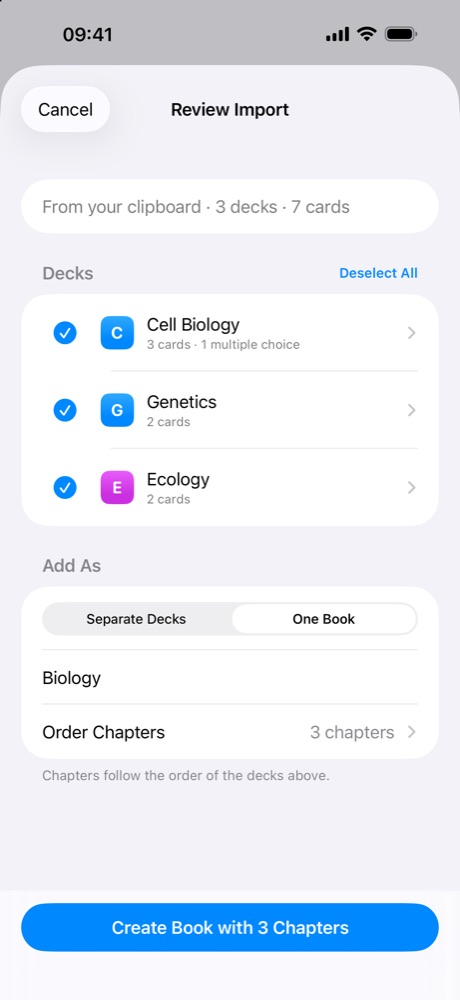
Step 7: Turn decks into a book
When you add several decks at once, choose One Book and they become its chapters, in order. You can also make a book from any decks with + and New Book.