
How to use iToth on the Mac
Study faster with the keyboard: arrows to move, 1 to 4 to rate. Your library is the same on iPhone, iPad and Mac through your iCloud.
-
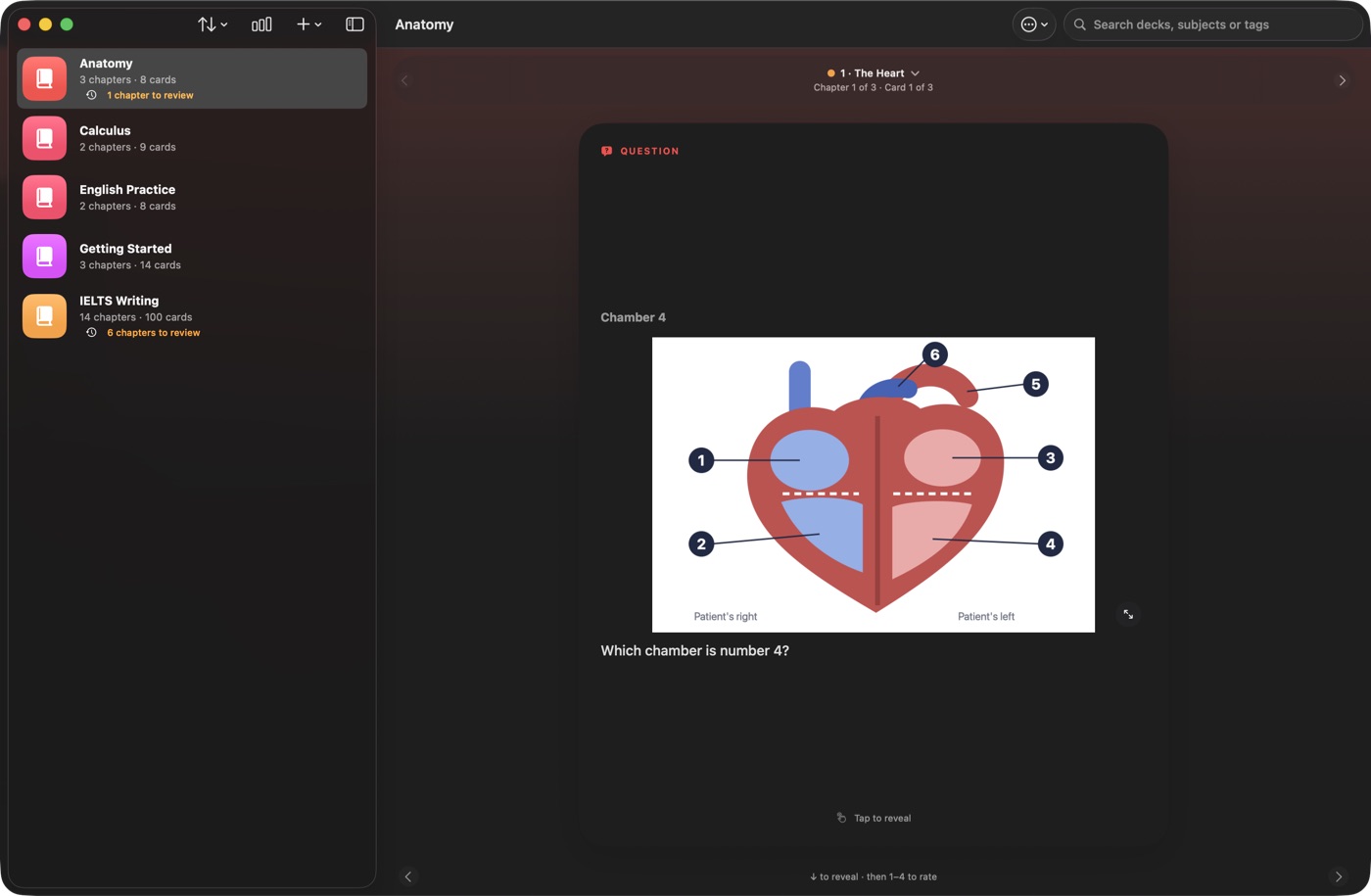
Step 1: Your library on the left
Books are listed in the sidebar, with the chapters that need review in orange. Click a book and it opens on the right, on the chapter that needs you most. Search by deck, subject or tag at the top right.
-
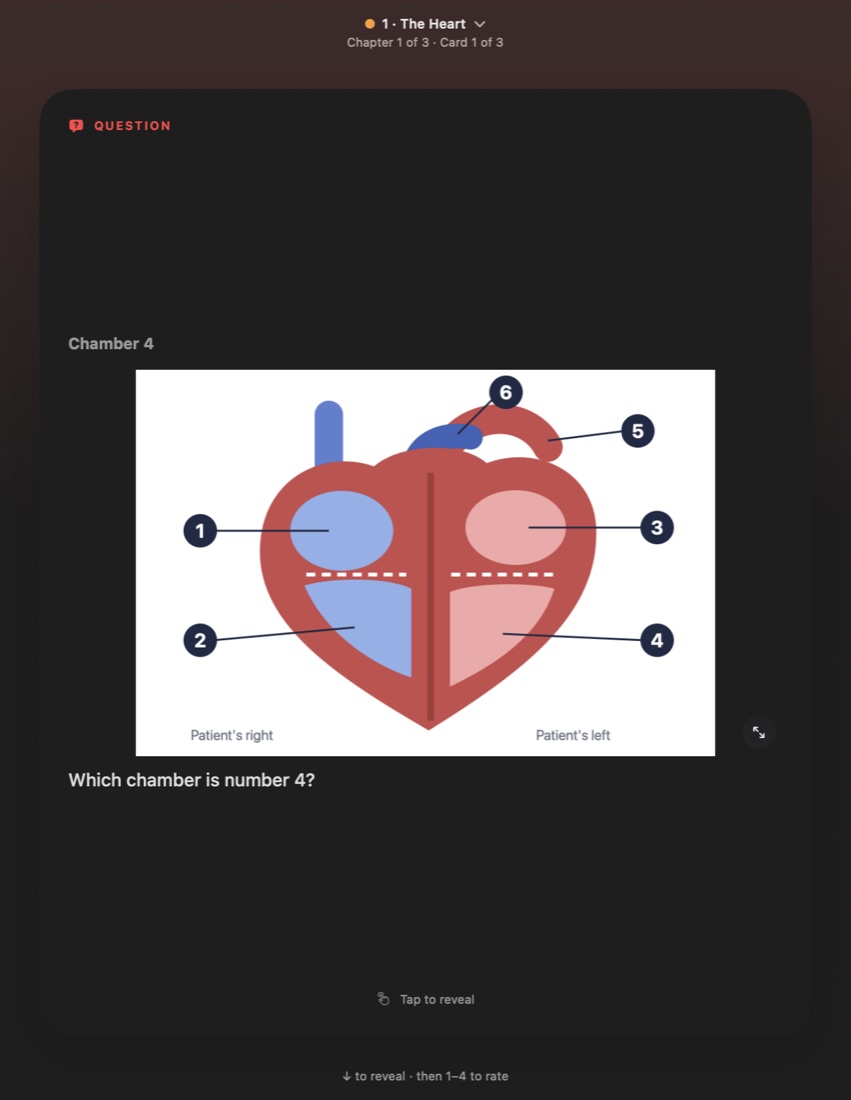
Step 2: Study with the keyboard
Press → and ← to move between cards, and ↓ to turn a card over. Click the chapter name at the top to see every chapter and jump between them.
-
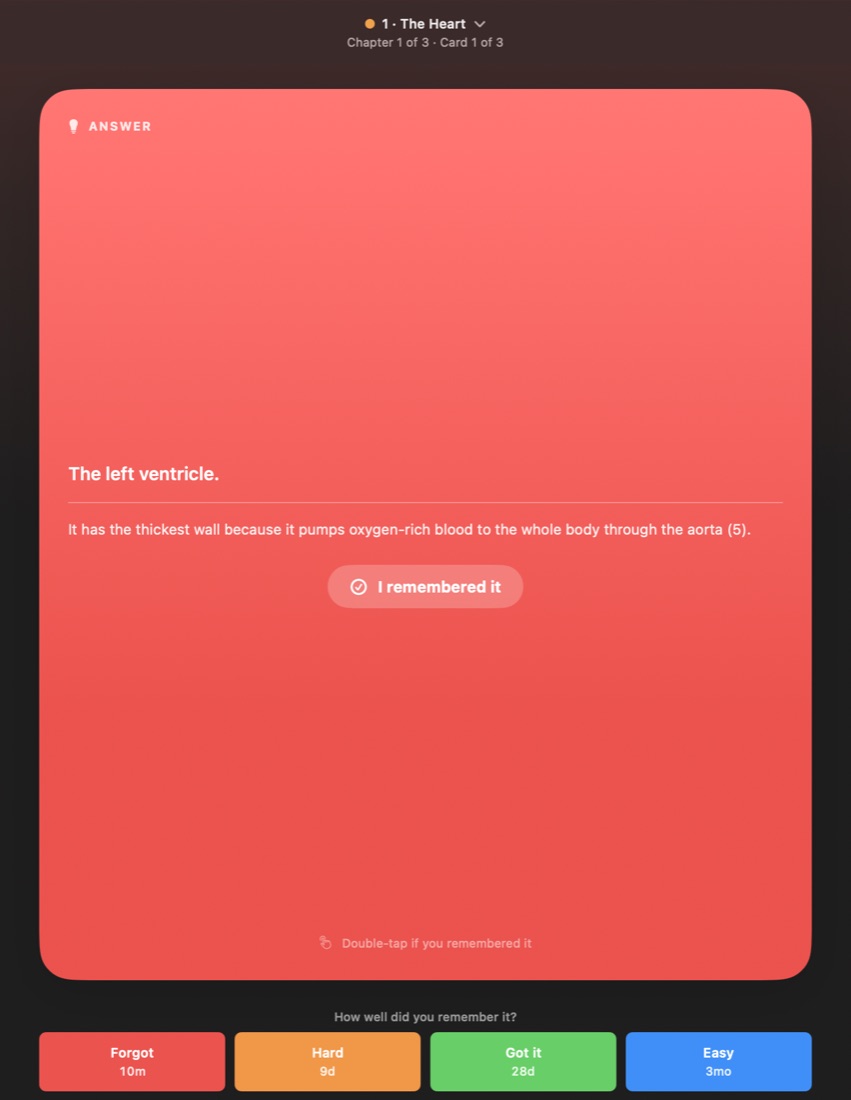
Step 3: Rate with 1 to 4
After the answer shows, press 1 Forgot, 2 Hard, 3 Got it or 4 Easy. On a multiple-choice card, pick an option and press Return to move on.
-
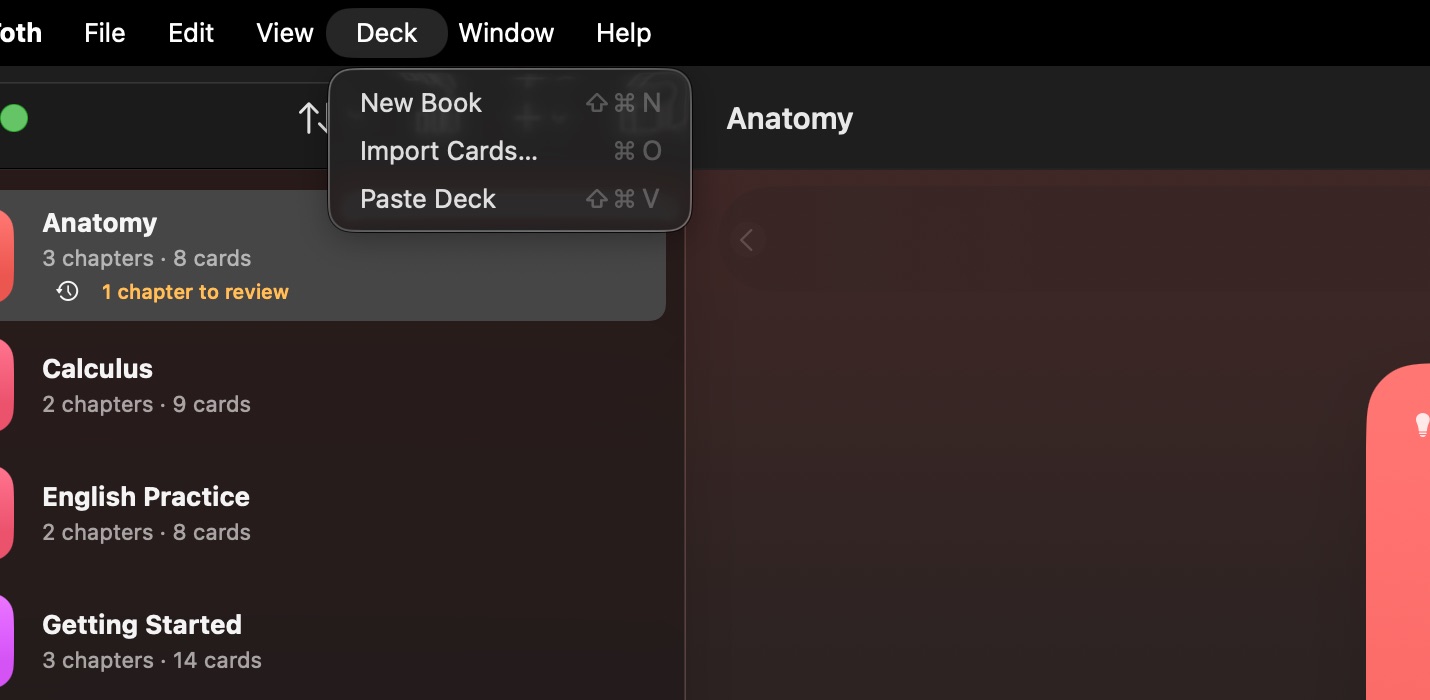
Step 4: The Deck menu
Make a new book, import an Anki or Quizlet file, or paste a deck you copied, all from the Deck menu or with their shortcuts. How to Write a Deck and Show Tips Again are in the Help menu.
-
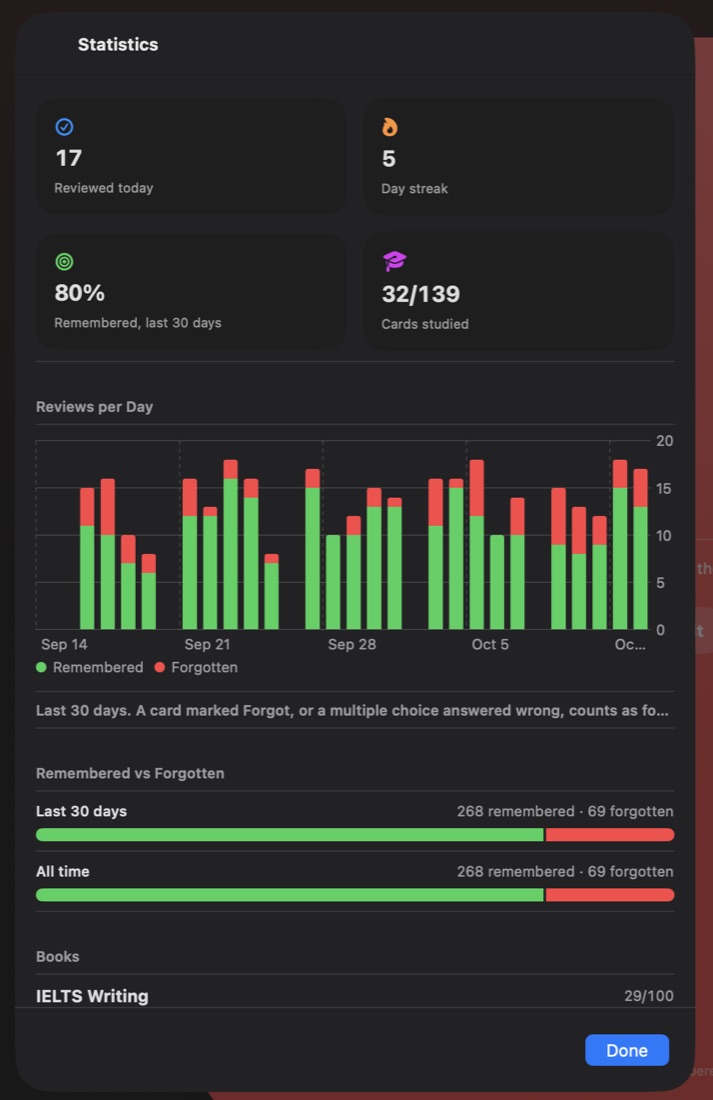
Step 5: Your progress at a glance
Press ⇧⌘S, or click the chart button in the toolbar, to see reviews per day, how often you remember, your streak and each book's progress.
Keyboard shortcuts
| Keys | What it does |
|---|---|
| → ← | Next or previous card |
| ↓ | Show the answer |
| 1 2 3 4 | Forgot, Hard, Got it, Easy |
| Return | Continue after a multiple-choice card |
| ⇧⌘N | New book |
| ⌘O | Import cards from a file |
| ⇧⌘V | Paste a deck |
| ⇧⌘S | Statistics |